Workflows
Dec 11, 2025
Workflows in Dioveo
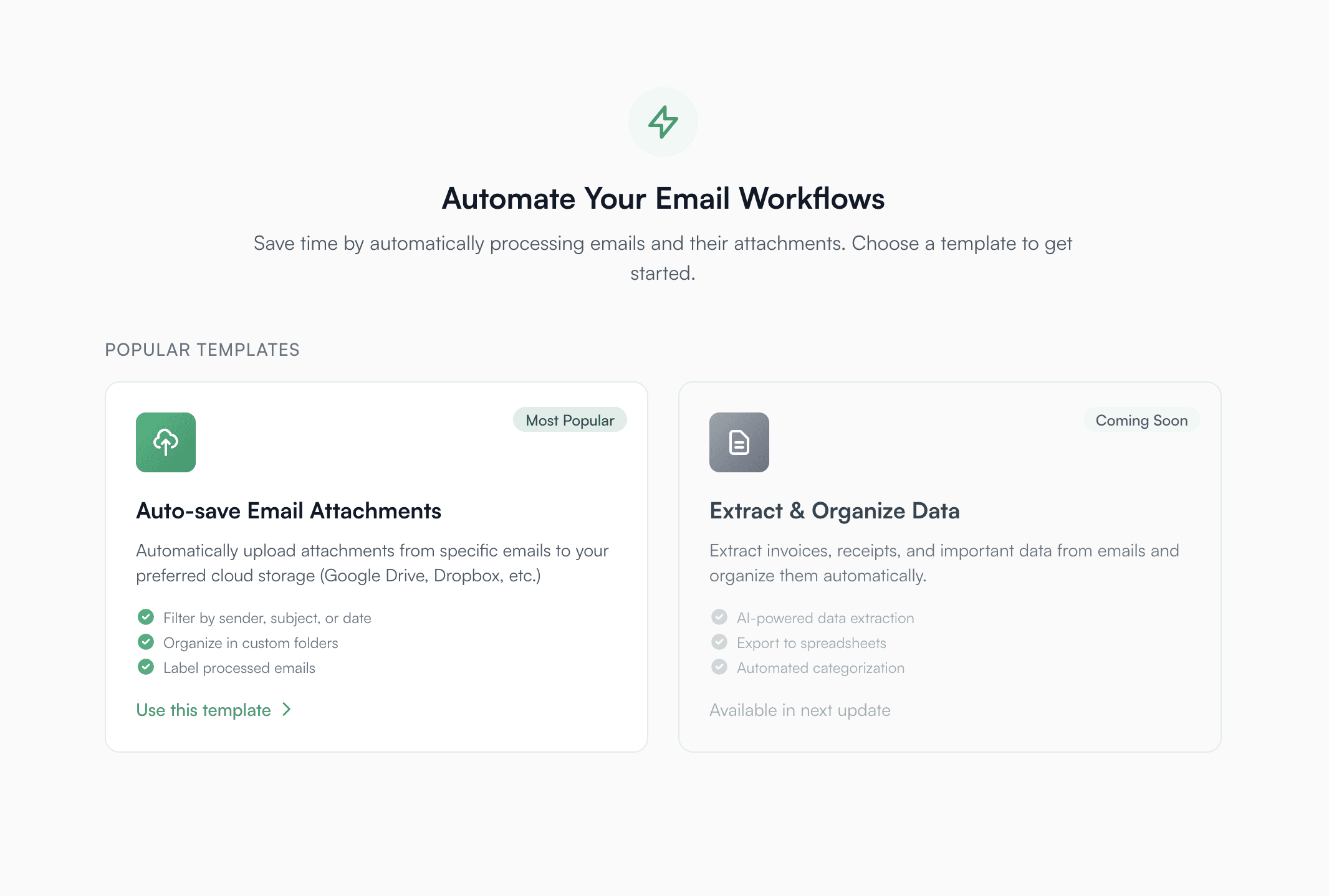
Workflows in Dioveo are designed to save you time by automating repetitive actions you would normally perform manually in your inbox. They help you handle common tasks in a fast, reliable, and effortless way, so you can stay focused on the work that matters.
At the moment, Dioveo offers one workflow template that is already extremely useful: automatically uploading email attachments to your cloud storage based on a search query. This workflow works with both Google Drive and Dropbox and requires only a few seconds to configure.
What this workflow does
This workflow monitors your mailbox for new emails that match the search query you define. When a new email arrives that fits your criteria, Dioveo automatically collects its attachments and uploads them directly to the folder you choose in your cloud storage.
For example, you can create a workflow to:
Upload all invoices from a certain sender
Save all receipts from the past month
Collect project files sent by your team
Store personal documents such as travel tickets or confirmations
Dioveo handles everything in the background. You no longer need to download files manually or search through your inbox for attachments. Once your workflow is configured, it reacts to new incoming emails automatically and keeps your files organized exactly where they belong.
How to create a workflow
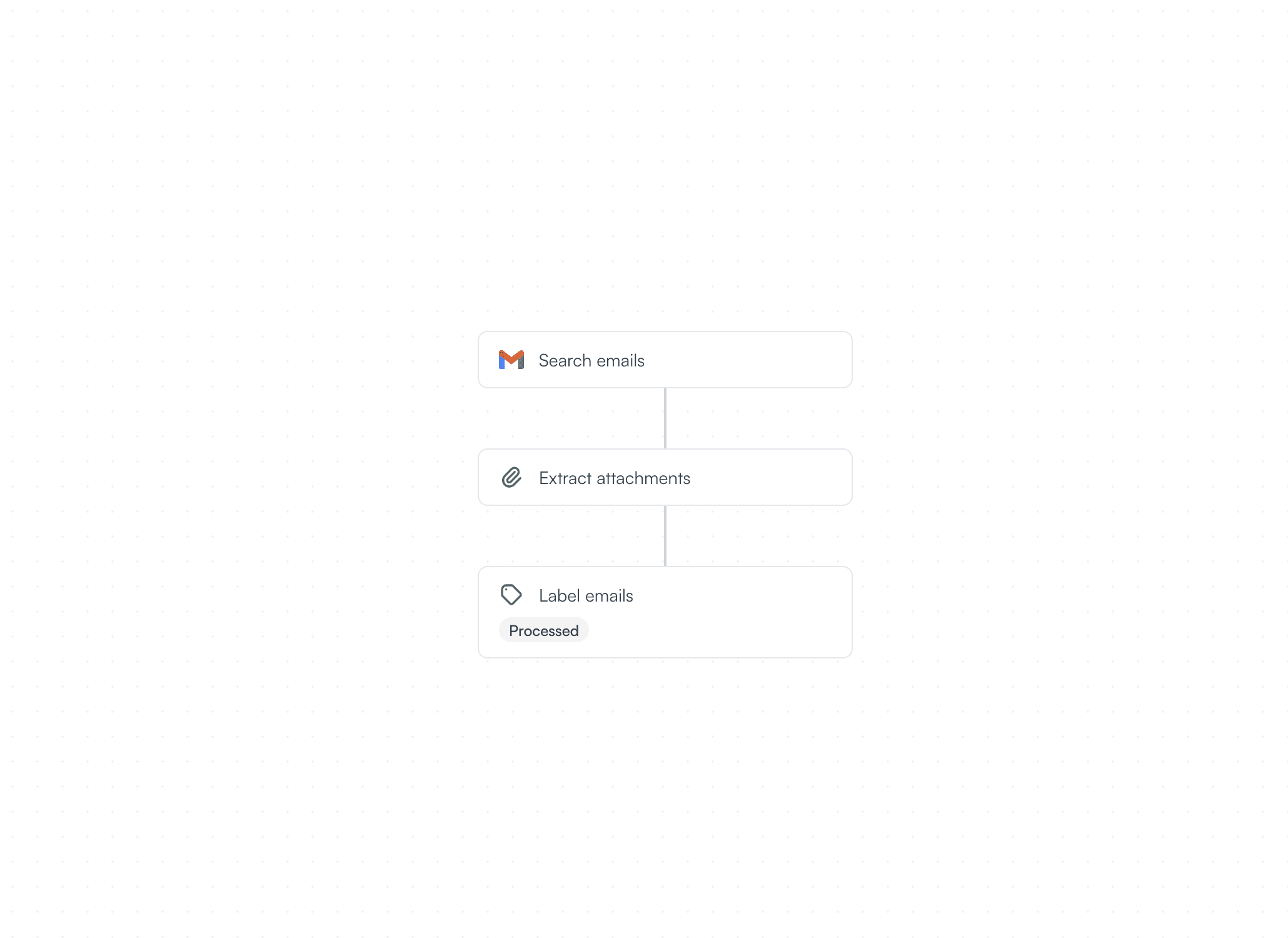
Creating a workflow only requires a few simple steps.
1. Enter your email search query
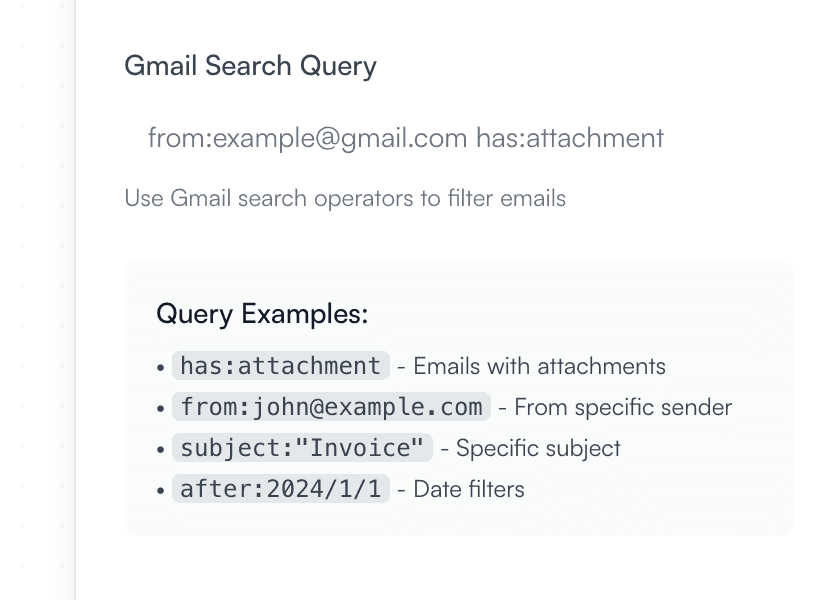
This query determines which new incoming emails the workflow will watch for.
Dioveo runs continuously in the background and activates only when a new email arrives that matches your query. It does not process older messages.
You can use Gmail style filters to describe the type of messages you want to automate. For example:
from:[email protected] to automatically upload new invoices as they arrive
subject:“purchase order” to collect new purchase orders sent by clients
has:attachment filename:pdf to save only new PDF documents
subject:“contract” OR subject:“agreement” to archive new legal documents
from:[email protected] has:attachment to upload new project files shared by your team
You can keep your query simple or combine multiple conditions to target the exact type of new emails you want the workflow to react to.
2. Select the target folder
Choose the folder in Google Drive or Dropbox where you want the files to be uploaded.
If you have not connected your storage yet, Dioveo will prompt you to link your Google Drive or Dropbox account first. Once connected, simply select the provider you want to use and browse to the folder where attachments should be stored.
Dioveo only uploads files to the location you choose and never reads or downloads anything that already exists in your storage.
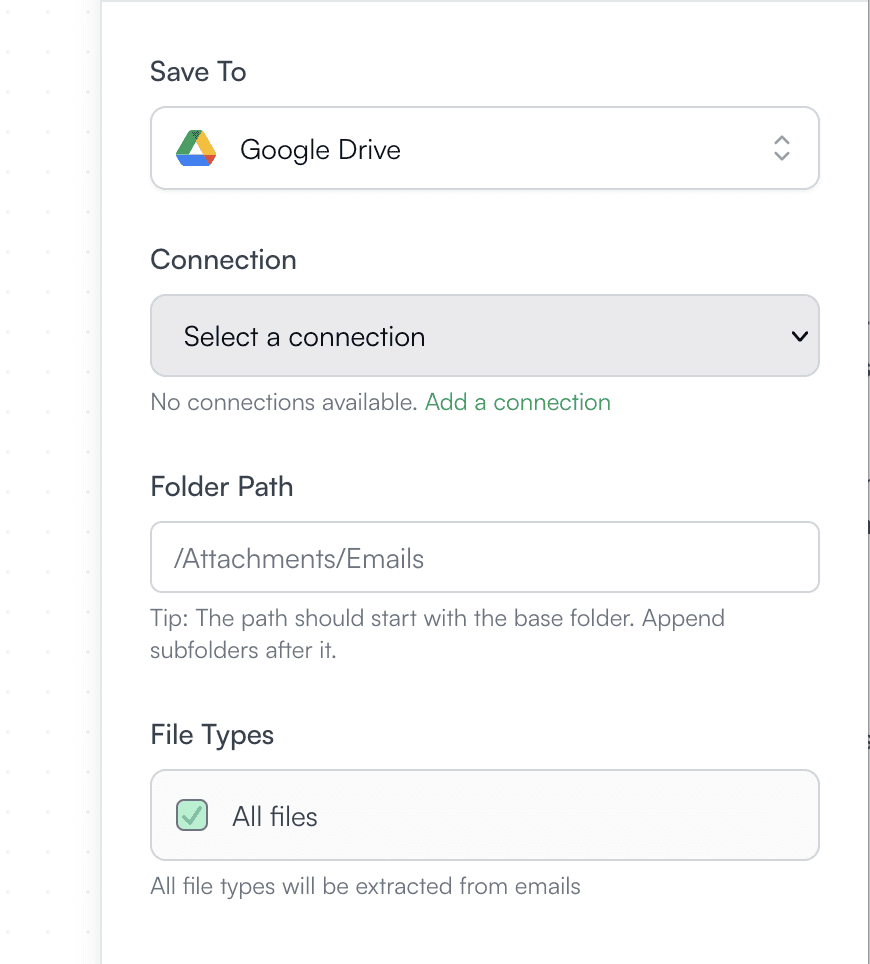
3. Run the workflow
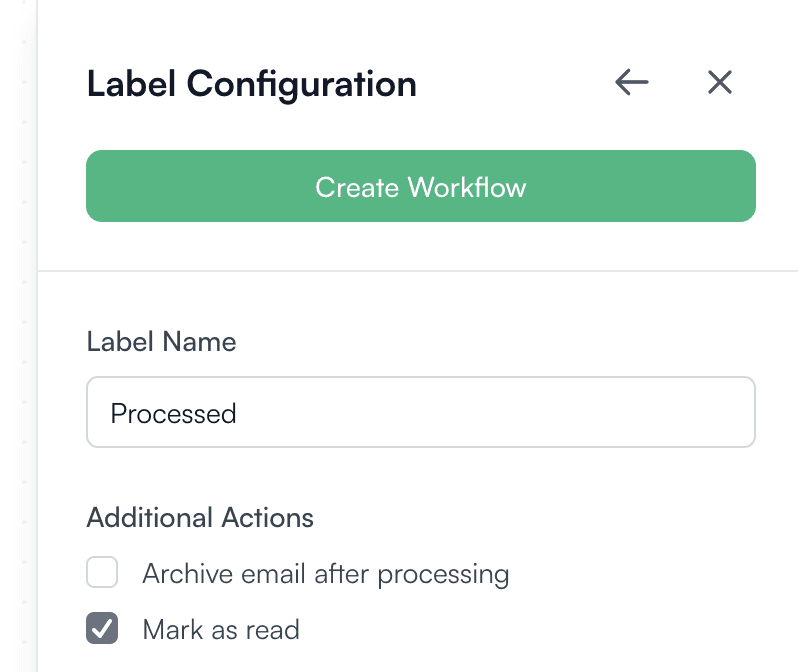
After selecting the destination folder, you can choose whether you want Dioveo to apply a specific label to the emails that were processed. This can help you keep track of which messages have already had their attachments uploaded. You can also decide if you want these emails to be marked as read once the upload is complete.
Dioveo then scans the matching new emails, extracts their attachments, and uploads them automatically to your chosen folder.
You can follow the progress in real time and review the list of uploaded files as soon as the workflow finishes.
What happens behind the scenes
Dioveo continuously monitors your inbox and triggers the workflow only when a new email arrives that matches your query. When this happens, Dioveo performs the following steps securely:
Detects the new incoming email that meets your workflow conditions
Verifies that the message contains one or more attachments
Extracts the attachments temporarily for the sole purpose of uploading them
Uploads each file to the Google Drive or Dropbox folder you selected
Applies your optional settings, such as adding a label or marking the email as read
Deletes the temporary files immediately once the upload is complete
Dioveo never reads or downloads anything already stored in your cloud storage, and attachments are never kept permanently on Dioveo servers.
Safety and control
You can stop a workflow at any time
You can delete it with one click
You can change the query or folder whenever you need
You stay in control of every upload
No files from your Dropbox or Google Drive are ever read or downloaded
What is coming next
This is only the beginning. In future updates, workflows will expand to include more powerful automation such as:
Auto labeling based on custom rules
Scheduled workflows
Multi step actions
Attachment renaming and formatting
Team templates
We are also working on adding more integrations and new workflow templates that can automate even more of your daily email tasks. And we would love to hear your ideas. Your feedback helps us decide what to build next, because this is your tool as much as ours. Together, we can shape Dioveo into the workflow assistant you truly need.
If you have suggestions or requests, please contact us at [email protected].